The Trip and Merges page is to view all the processed trips and merges. This page is the heart of BioBase, and here is where the Trip Viewer is accessed. See the image below for an explanation of each feature.
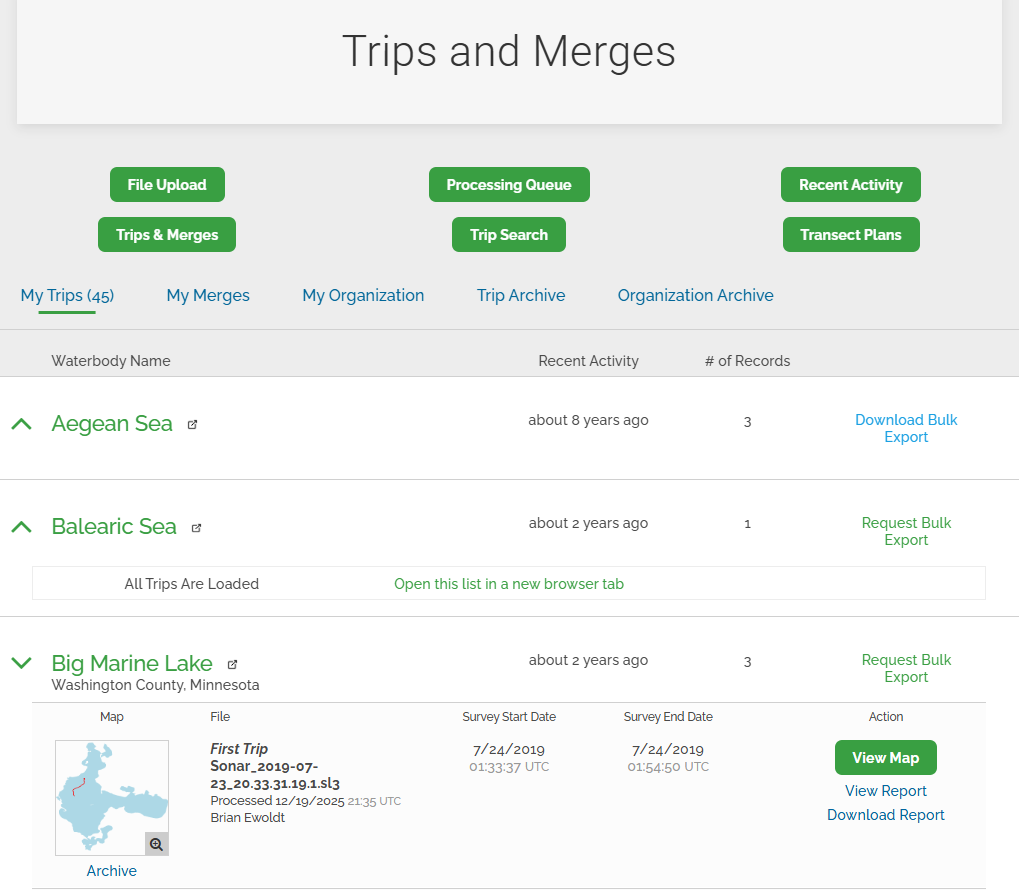
The buttons under the Trips and Merges title are the same as the Dashboard. The line below are tabs to view different categories of the trips.
My Trips – Displays all trips uploaded under the current account.
My Merges – Displays trips that have been merged within the Trip Viewer.
My Organization – Displays all trips and merges within an organization. If multiple accounts are included and the Organization feature is enabled,
all organizational trips can be accessed here. A Data Manager can interact with trips from other accounts within the organization.
Note: If an organization includes multiple accounts but does not have the Organization feature or a Data Manager configured, contact info@biobasemaps.com for assistance.
Trips Archive – Displays trips that have been archived. Archived trips are placed into storage with limited access.
Select Restore to return a trip to active status and access it in the Trip Viewer.
Note: Trips cannot be permanently deleted and may only be archived. Merges can be deleted.
Organization Archive – Displays archived trips from other accounts within the organization.
Trips Section Overview
The Trips section displays:
• Waterbody Name
• Recent Activity
• # of Records (Trips) associated with each waterbody
Each waterbody includes a green caret (arrow). Selecting the caret expands the list of trips associated with that waterbody.
Trip Details
When expanded, each trip displays:
• Map– A thumbnail image of the waterbody with the trip track line.
• File– The sonar file name (or assigned trip name from the Trip Viewer) The processing date and time (UTC)
•Survey Start and Survey End Dates and times (UTC)
Action
Before expanding a waterbody, a Bulk Export can be requested. Selecting Request Bulk Export generates all available exported
content for trips associated with that waterbody. Processing may take several minutes. Once complete, an email notification is sent to the account holder and the link changes to Download Bulk Export.
When the trip list is expanded, the Action column includes:
• View Map – Opens the trip in the Trip Viewer (see the Trip Viewer section of this guide for additional details).
• View Report – Opens the web-based version of the report.
• Download Report – Downloads the HTML version of the report.
Opening Trips in a New Tab
At the bottom of the expanded waterbody list, the option “Open this list in a new browser tab” is available. Selecting this option opens all trips for the selected waterbody in a new browser tab.
This is particularly useful when more than 10 trips are associated with a waterbody.