The Trip Search page is designed for advanced users who need to quickly locate specific trips across waterbodies. It provides the most efficient way to search for trips within an account or across an organization.
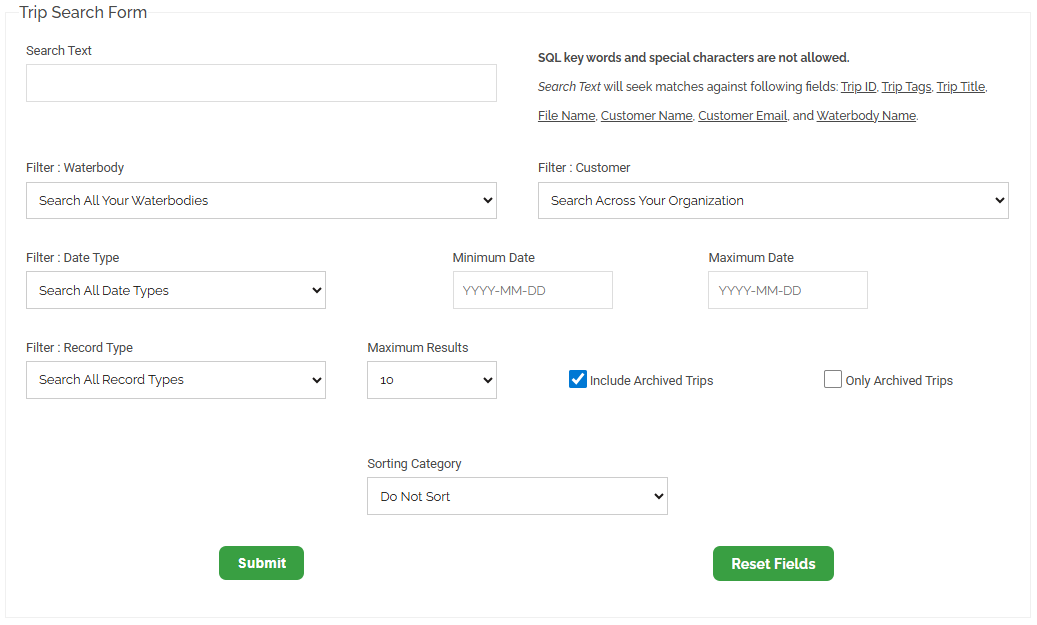
Search Text - Searches for matches within the following fields: Trip ID, Trip Tags, Trip Title, File Name, Customer Name, Customer Email, and Waterbody Name.
Filter : Waterbody - Displays a list of all waterbodies associated with trips in the account or organization.
Filter : Customer - Primarily used within organizations that have multiple user accounts. This filter lists all accounts associated with the organization.
Filter : Date Type - Specifies which date field to use for filtering: Survey Date, Upload Date, Process Date, or Update Date.
Minimum Date - Defines the earliest date included in the search range.
Maximum Date - Defines the most recent date included in the search range.
Filter : Record Type - Limits results by file or record type, including:
o Merge Trips
o Lowrance Sonar (.sl*) files
o Genesis Live (.gsd) files
o Comma Delimited (.csv) files.
Maximum Results - Includes archived trips that match the selected filters.
Include Archived Trips - Limits the number of displayed results. Options include 1, 10, 25, 50, and 100.
Only Archived Trips - Restricts results to archived trips only.
Sorting Category
Determines how search results are displayed. Available options include:
Trip ID Ascending – Displays trips starting with the lowest Trip ID.
Trip ID Descending – Displays trips starting with the highest Trip ID.
Waterbody Name Ascending – Displays trips in alphabetical order by waterbody name.
Waterbody Name Descending – Displays trips in reverse alphabetical order.
Survey Date Ascending – Displays the oldest surveys and merges first.
Survey Date Descending – Displays the newest surveys and merges first.
Upload Date Ascending – Displays the oldest uploaded surveys and merges first.
Upload Date Descending – Displays the newest uploaded surveys and merges first.
Process Date Ascending – Displays the oldest processed surveys and merges first.
Process Date Descending – Displays the oldest processed surveys and merges first.
Running a Search
After selecting the desired filters and sorting options, select Submit to run the search. Results typically appear within a few seconds, depending on the selected filters.
To clear all selections and return to default settings, select Reset Fields.